SHARE
What is a CSV File? The Ultimate Guide in 2026

A CSV (Comma-Separated Values) file is a file format used to store and exchange tabular data in a plain text format. CSV files are widely used in various applications, including data storage, data exchange, and data analysis. CSV files are widely used for data storage and exchange needs since many software applications allow for exporting or importing data in CSV format.
What is a CSV File?
CSV files are a form of simple data storage. A CSV file is a simple text file that stores tabular data in a structured format. In a CSV file, each line represents a single record, and each record consists of one or more fields separated by a delimiter, typically a comma. The first line of the file often contains the headers that describe the contents of each column.
CSV files are a popular choice for storing and exchanging data because they are simple and easy to use. They can be created and edited with any text editor and can be imported and exported by many software applications. CSV files can be easily imported into spreadsheet applications like Microsoft Excel or Google Sheets, making it easy to manipulate and analyze large sets of data.
What is a CSV File Used for?
Here are some of the most common uses of CSV files:
- Data storage: A CSV file is popular for storing data because it is lightweight, easy to use, and easily edited with a text editor. For example, a business might use a CSV file to store customer data, product data, or inventory data in a format that is easily accessible and shareable.
- Data exchange: CSV files are often used to exchange data between different applications and systems, especially when the data needs to be imported or exported from one system to another. For example, a company might use a CSV file to transfer data from an e-commerce platform to a customer relationship management (CRM) system.
- Data analysis: CSV files are commonly used because they can be easily imported into various software tools and platforms, such as Microsoft Excel or Google Sheets. This makes it easy to analyze and manipulate large data sets, such as sales, surveys, or financial data.
- Website content management: CSV files can be used to manage website content, such as product descriptions, prices, and images. For example, an e-commerce website might use a CSV file to upload product information to its website.
- Database management: A CSV file can also be used as a simple database management tool for small data sets. This is because CSV files can be easily imported and exported from database management systems like MySQL, making it easy to manipulate and manage data.
History of the CSV Format
The CSV format has been around longer than the personal computer. It was first used by the IBM Fortran compiler in 1972 and further defined over time. Free-form list-directed input-output was defined in 1978 by Fortran 77. The terms comma-separated value and CSVs were used by 1983 when Osborn Computing Company (OCC) and its SuperCalc spreadsheet defined the quoting convention allowing strings to contain embedded commas. Since then, there have been few attempts to standardize the format. It was not until 2005 that serious attempts to standardize the well-known but poorly documented format with the RFC 4180 initiative. It has gone under numerous revisions since, but because of how long it went without regulation, there are still a lot of different versions out there.
The Structure of a CSV File
A CSV file can be a plain text file and leverages a simple structure that is not only easy for computers to understand but is also human-readable.
The structure of a typical CSV file encompasses three primary components:
| CSV File Component | Purpose |
|---|---|
| Header Row | The first line, serving as the column titles, indicating the type of data each column holds. It uses the same format as subsequent data rows, with values separated by a delimiter. |
| Delimiter | A character that separates the values in each row. While the comma is the standard delimiter in CSV files (hence the name), other delimiters like tabs (in TSV files) can also be used, depending on the file format and requirements. |
| Data Rows | Following the header, each row represents a new data entry, with values organized according to the header titles and separated by the chosen delimiter. In spreadsheet software, these rows correspond to individual rows in the grid, presenting the data in an organized, tabular form. |
By adhering to this structure, CSV files provide a straightforward means of storing and exchanging tabular data, facilitating easy import and export across different software and platforms.
An Example CSV File
The following displays an example of a simple CSV file, as you would see it in a text editor. The first row is the header row, displaying the type of information that should be placed in the lines to follow, as well as the order in which they are presented. Each column is separated by a comma, as are the rows that follow.
How to Open a CSV File
Opening a .CSV file is usually automated, provided that your PC recognizes the format. The CSV file will simply open in the program you typically open it with. If it does not, you must tell your computer which program to use to open a CSV file. If you need to open the CSV file with a different program than usual, you will have to repeat the process and select the correct program from the available options.
How to View a CSV File in a Text Editor on Windows
By default, a CSV file will open in Excel. Instead, open it in a text editor, right-click the file, and select the Notepad option from under Open with if available.
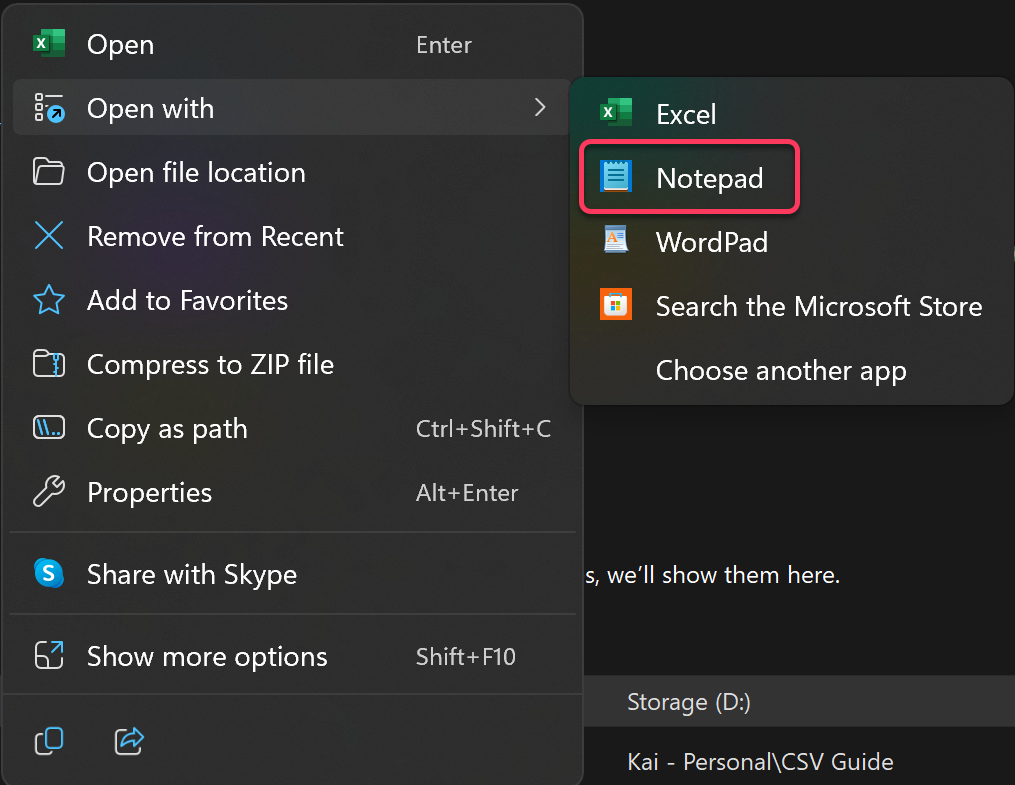
If Notepad is not shown as an option under Open with, simply select Choose another app.
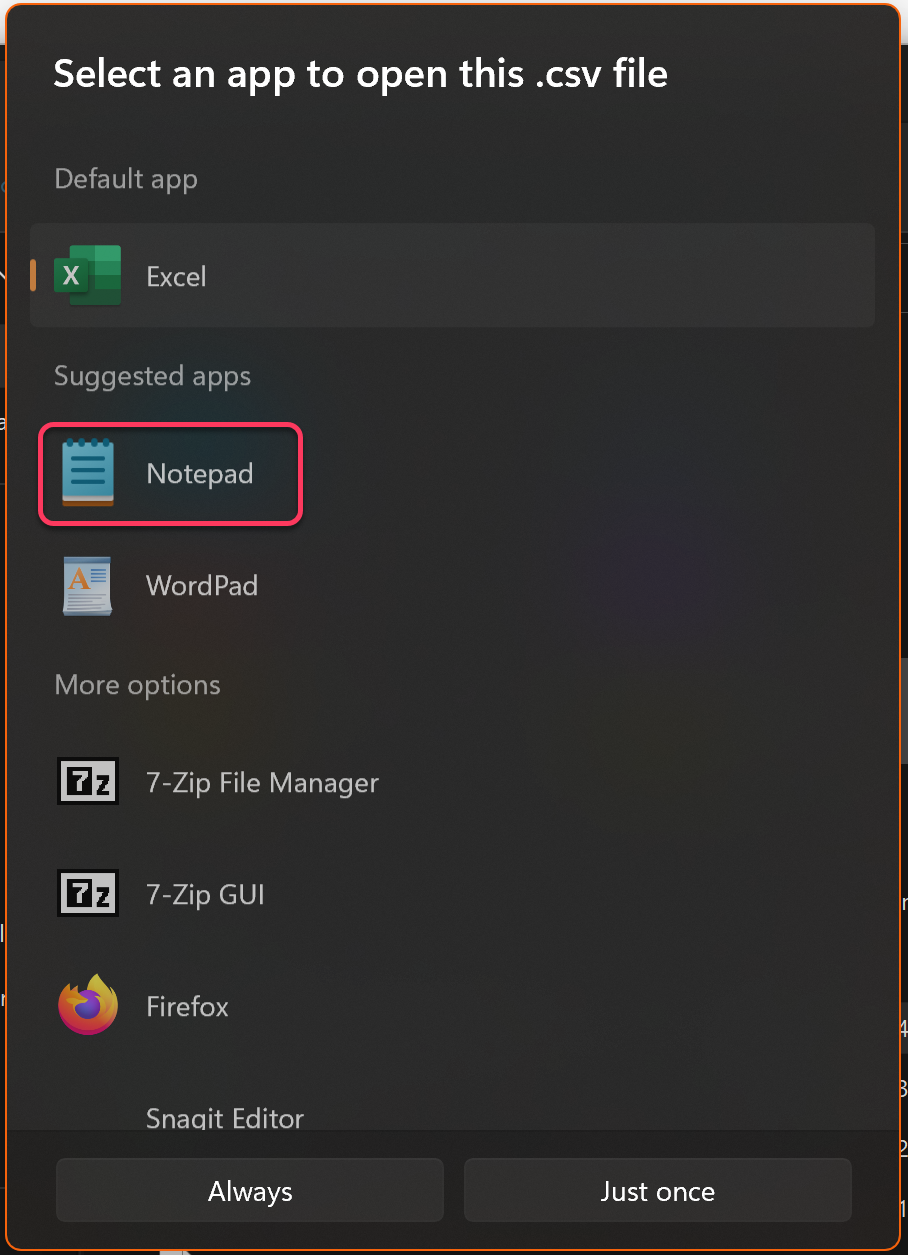
Notepad should be available under suggested apps.
How to View a CSV File in a Text Editor on Mac
To open a CSV file in TextEdit, the default text editor included in MacOS is pretty simple.
- Open TextEdit on your Mac and select File > Open… from the menu bar at the top of your screen or press Command+O on your keyboard to open a dialog box where you can navigate to the file you want to open.
- Navigate to the folder containing your CSV file and select it from the list of files shown in the dialog box.
- Make sure that “Plain text encoding” is selected from the dropdown menu at the bottom of this dialog box before clicking Open.
How to Open a CSV File in Excel
Excel handles CSV files exceptionally well, and you should have no difficulty importing a CSV file. Indeed, once you have done it once, you should be able to open subsequent files simply by clicking to open. Excel becomes your default CSV Importer.
Assuming you have not yet received a CSV file to use in Excel – or that you are doing it for the first time on a new PC and a fresh install of Excel. In most cases, this will still be a simple process, and may even automatically open the file anyway. But what if for some reason it doesn’t recognize the format as anything but another text file? What if through user error, another program has been set as a default for CSV files? Let’s go through the permutations, shall we?
To save a text file as a .CSV file, click Save as in Notepad (or whatever text editor you use). In the dropdown labeled Save as Type, select “All Files”. Type the name of the file, and add the extension as .csv, for example ‘Test File.csv’.
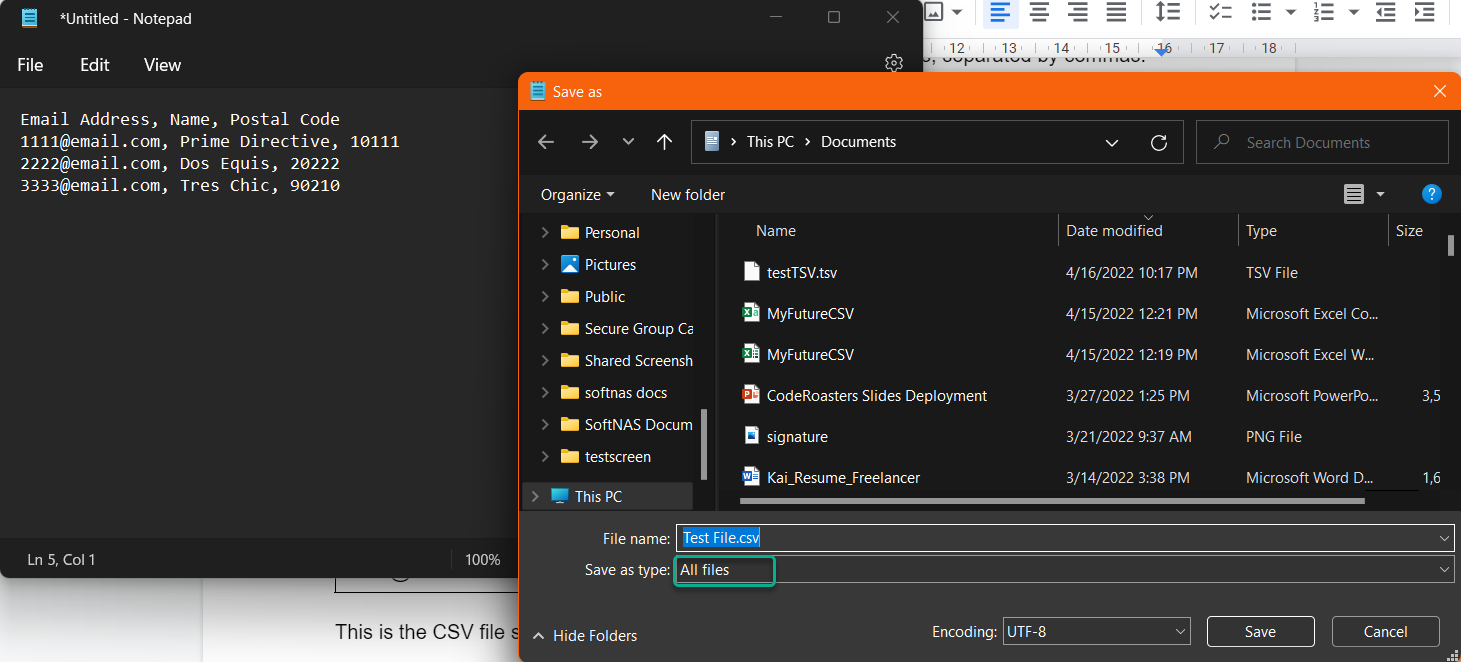
Once your text file is saved as a CSV file, you can verify the file was saved correctly by going to file properties. First, find the file, wherever it may reside. Chances are if it was recently received, it will be in your Downloads folder, or you can find it under ‘Recent files’ under Quick Access. We’ll use the latter option in this example.
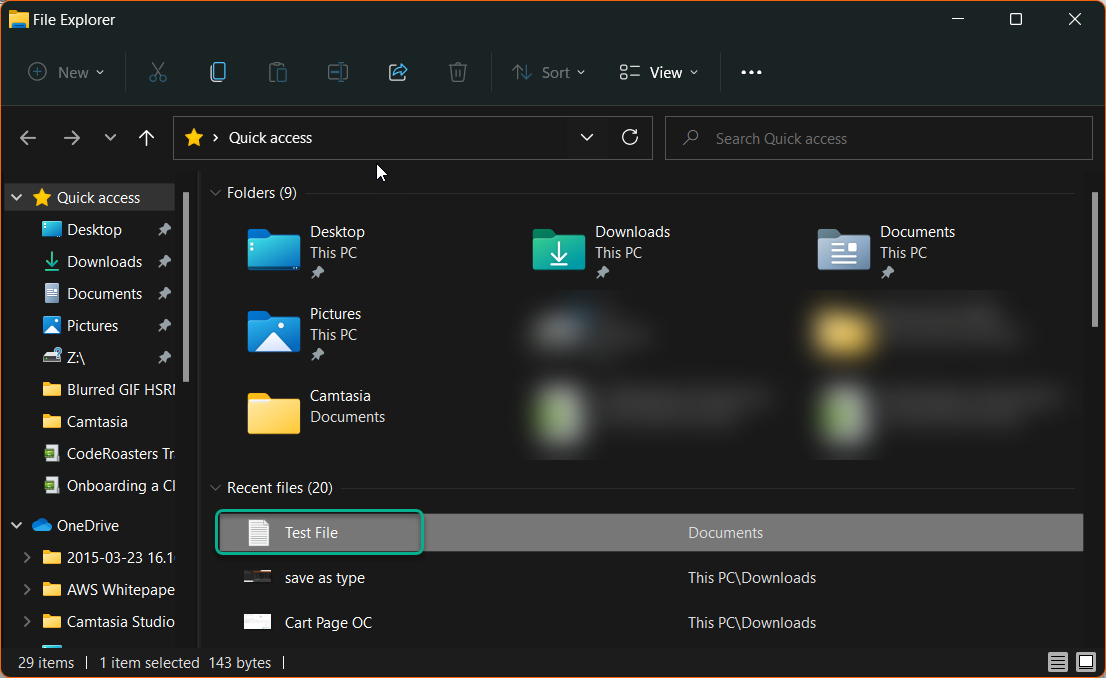
Right-click the file and select Open with. You will note that Excel is an option here, this may not be the case if this is your first time opening a CSV, or if you have accidentally previously selected another program as the default for CSV. Click Excel if it is present. If Excel is not an option, then select Choose another app.
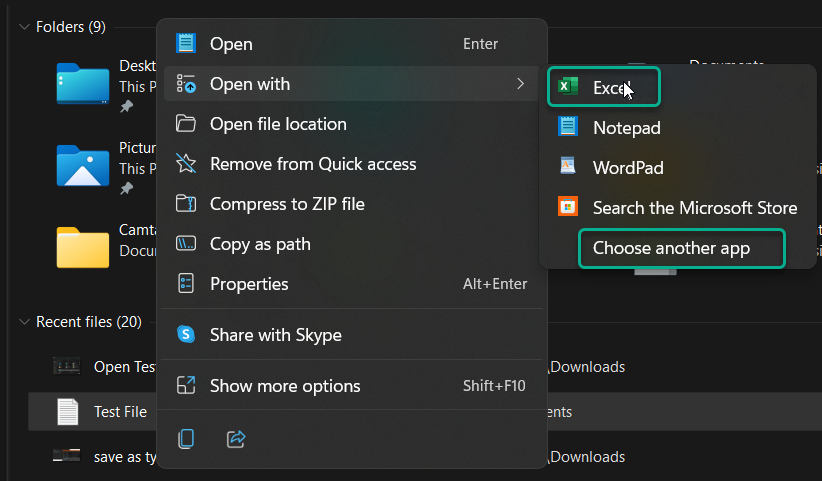
If Excel is provided as an option, and you select it here, the process is complete.
If Excel is not available as an option
In Choose another App, if Excel is not shown as one of the default options, select More Apps.
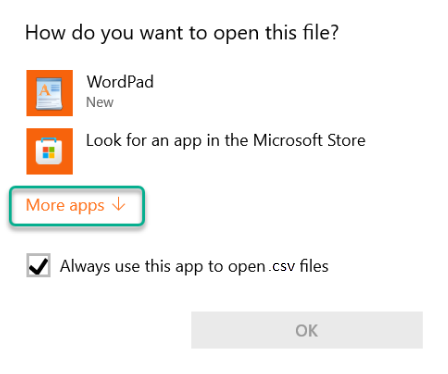
In More Apps, search for Excel. For the purposes of this blog, we will assume it’s on your PC, but if not, you can look for it in the Microsoft Store. Again, if you do not see Excel listed, you will need to select “Look for another app on this PC”.
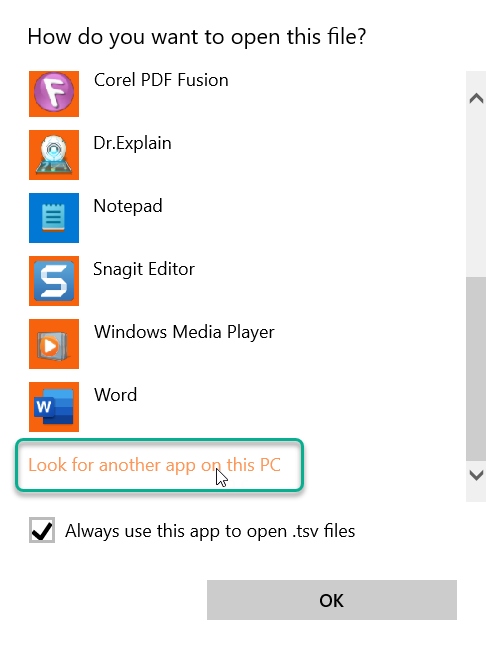
This will open a file search window that defaults to C:\Program Files on your PC. You will need to find the Excel application. By default, this will be found in C:\Program Files\Microsoft Office\root\Office16. Scroll down the list until you see the Excel icon and select it. Click Open.
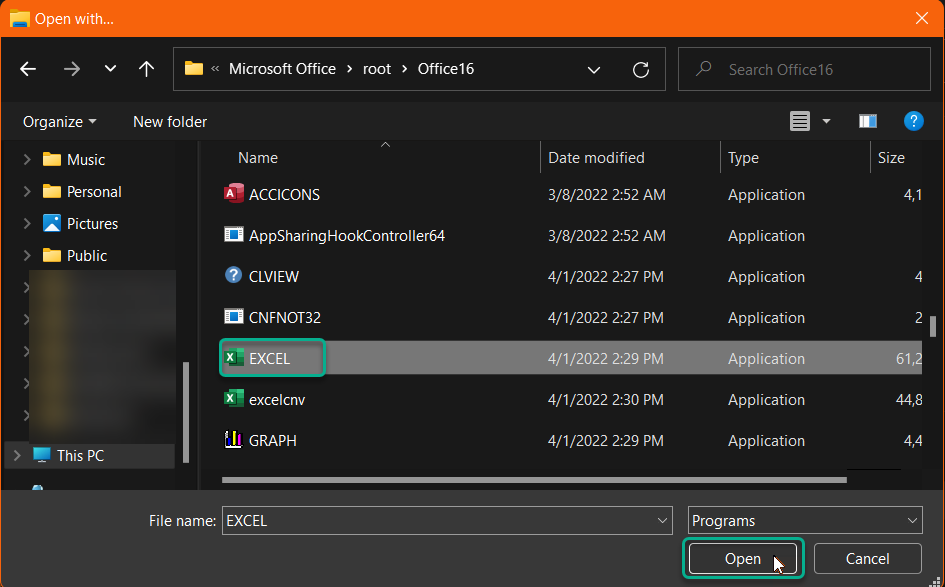
Upon clicking Open, two things will happen:
- Excel will open with the CSV info presented.
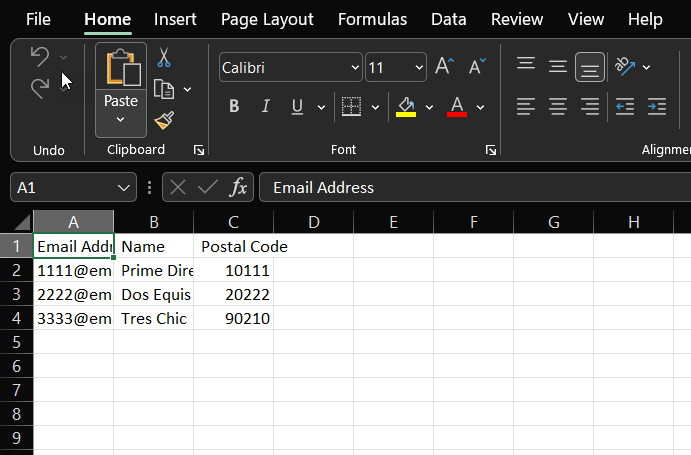
- Excel will become the default option for opening (importing) CSV files.
You may want to perform some formatting within Excel to differentiate the headers, enlarge the columns, or wrap text to make the CSV content easier to work with. But essentially, you are now good to go and can import as many .CSV files as you want to Excel. In Excel, you can format the CSV file to meet the import requirements of a target system. To ensure it complies with the target system requirements, Flatiron Fuse can help you out. Once edited, export the file as CSV from Excel.
How to Open a CSV File in Google Sheets
To open a CSV file in Google Sheets, open Google Sheets, and open a blank sheet. In the blank sheet, click File, and Open.
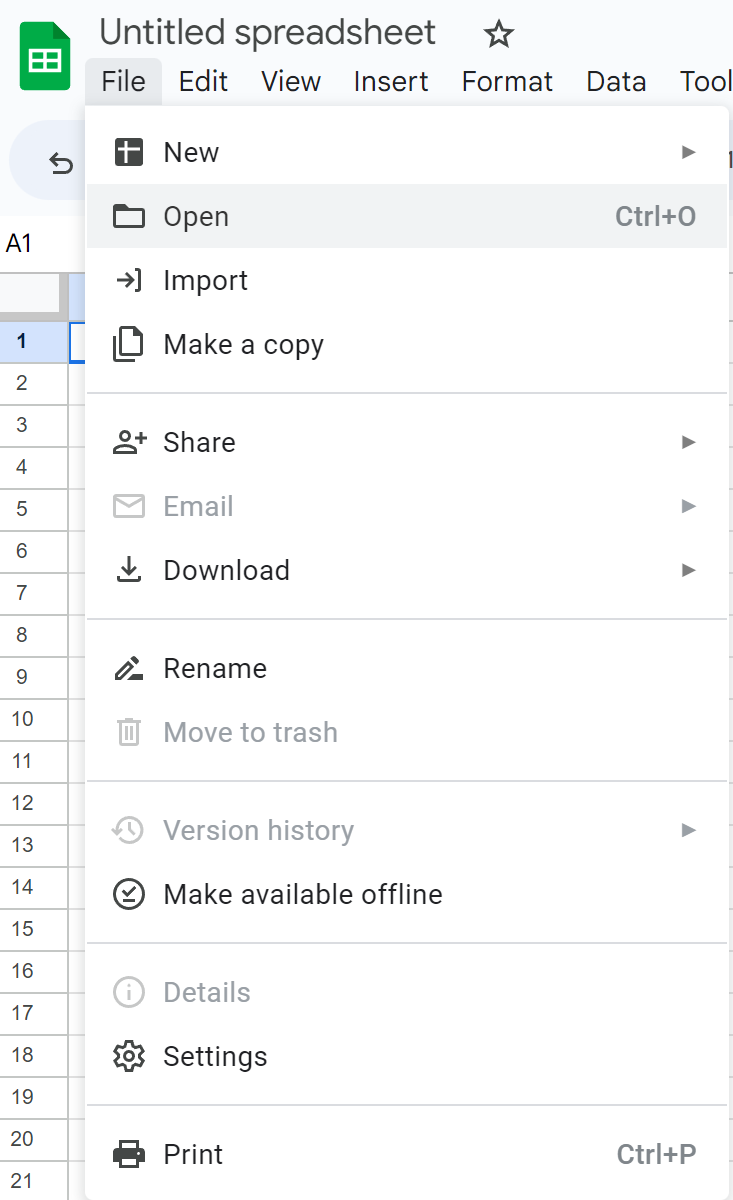
If, as in our case, the file is on your PC, click the Upload option, then click Browse. Select the desired file from your PC. Alternatively, drag the file to the box to be uploaded.
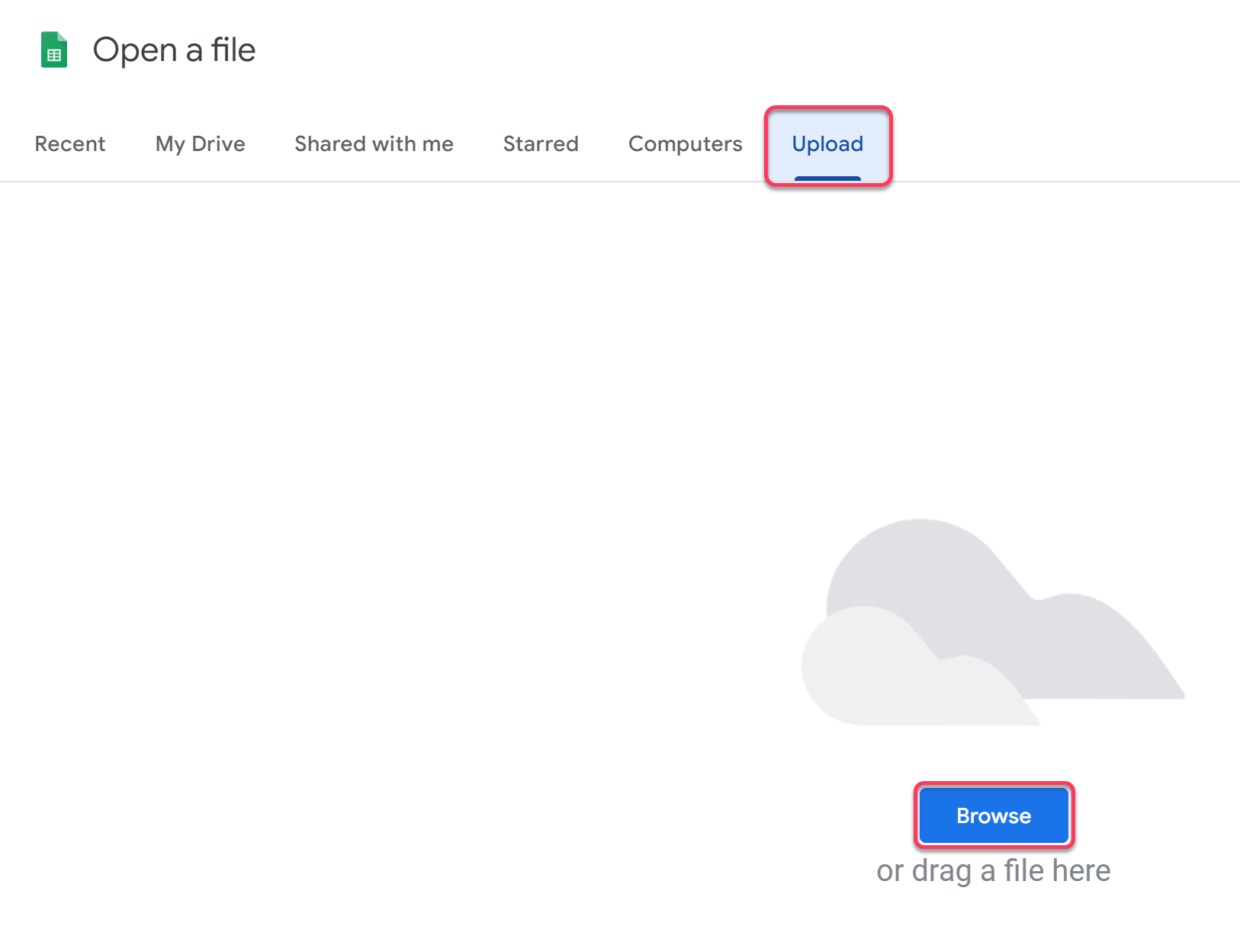
Select the file and click Open. Google Sheets will recognize the CSV format and open the file automatically.

How to Create a CSV File
As stated, the CSV format is ridiculously easy to learn and use in its most simple format. In its most straightforward format, it is written simply as lines of entries, separated by commas. A top-line establishes headers, and each subsequent line matches records and fields to the top header line.
For example, the below lines of text, if saved as a .csv file, would be read in your spreadsheet as:
Professional CSV Import Solution
Get the CEO's Take
Handpicked tech insights and trends from our CEO.